Formatting in Ghost

This guide provides an overview of how default formatting elements—such as headings, callouts, images, and embeds—are styled and rendered by our site's Ghost theme. Use it as a reference to preview how content will appear when published.
Video Walkthroughs
How to Log In and Create a Post
How to Add Images and Quotes
How to Schedule and Post an Article
Editing
Ghost uses a simple text editor similar to those found on sites like Medium and Substack. It supports copying and pasting directly from Google Docs, and will do an admirable job of maintaining formatting, uploading images, and embedding special links.
The Ghost editor also supports Markdown, a convention for maintaining formatting in plain-text documents. This can help you quickly format your document without needing to take your fingers off the keyboard. Some features, like lists, can only be accessed using Markdown or keyboard shortcut listed below:
✒️ Markdown/Shortcut Reference
Blocks
🎵 Audio
Share the sound of your story with directly uploaded audio files:
🖲️ Buttons
Direct your readers with clear calls to action with the button block. You can change both the destination URL and the displayed Call-To-Action:
📣 Callouts
Callouts are used to highlight important information within a post—such as tips, warnings, or key points—and are visually styled to stand apart from body text. These are inserted using the Callout card in the editor.
To add multiple lines within a callout, press Shift + Return at the end of a line:
Meet the local entrepreneurs reshaping West Philly's businesses—one storefront at a time.
The first Black newspaper in the U.S., Freedom’s Journal, was founded in 1827 to give a voice to African American communities ignored by mainstream media
Early voting starts Monday. Find your polling place, check your registration, and make your voice heard.
🅱️ Dropcaps
Posts automatically add a dropcap to the first paragraph of a piece:
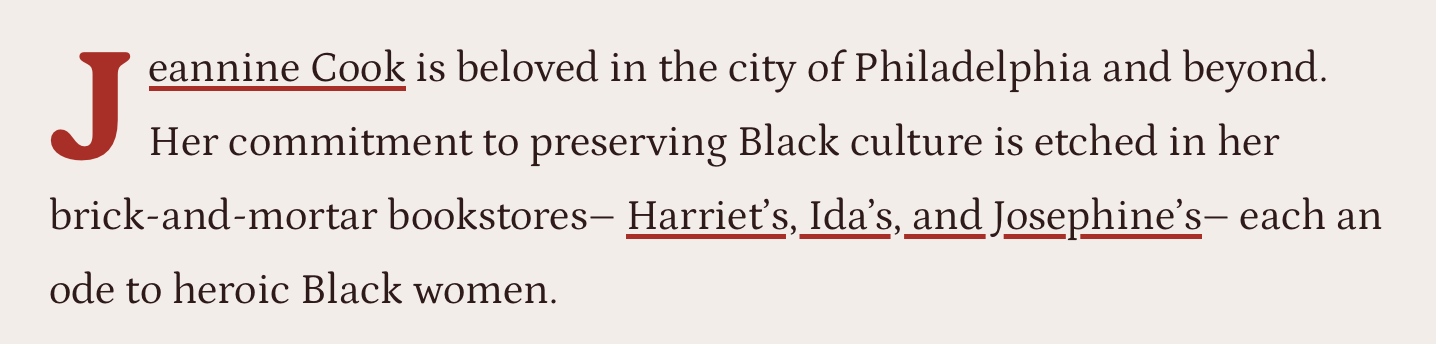
To override this behaviour, use an HTML block:
- To force a dropcap, create an HTML block with the following code:
<p class=”tpd-dropcap”>
  This paragraph will have a dropcap
</p>- To remove a dropcap (i.e., from the first paragraph), create an HTML block with the following code:
<p class=”tpd-no-dropcap”>
  This paragraph will not have a dropcap
</p>
⚠️ Note: Since these are HTML blocks, you will need to use HTML tags to add bold, italic, and link information to your text:
For instance:
<p class="tpd-dropcap">
  This paragraph will have a drop cap, as well as <b>bold text</b>,
  <i>italic text</i>, and a <a href=”https://example.org”>link</a>.
</p>
Would yield:
This paragraph will have a drop cap, as well as bold text, italic text, and a link.
(To make this easier, you can also use a snippet.)
📹 Embeds
By and large, you can paste most external links into the Ghost CMS to automatically create an embed. This is confirmed to work for Youtube, Vimeo, TikTok, Threads, Facebook, and most Instagram links.
If for any reason an embed is not automatically created on paste, you’ll need to get the embed code from the platform and paste that into an HTML block.
For instance, Instagram Reel links will often not automatically embed:
- On Instagram’s share menu, select “Copy Embed Code” to get the embed code for the Reel.
- On Ghost, create an HTML block, paste your embed code in that block, and your embed should be ready.
You can follow a similar procedure for any sites that do not automatically create the embed in Ghost.
💾 File
You can offer downloads directly from your posts with the file block:
🆔 Headers
Headings help organize content and improve readability. This theme supports standard HTML heading levels (H1through H6). Here's how each one is styled:
Heading 1
Heading 2
Heading 3
Heading 4
Heading 5
Heading 6
🏙️ Images and Galleries
There are two main ways of inserting images into a post: the Image block, and the Gallery block.
Image Block
The image block, found either by clicking the + menu at the beginning of a line or by typing /image, will create a block for displaying a single image. You can also drag-and-drop an image into the editor where you would like the image to appear.
Images can appear at one of three widths: normal, wide, and full-bleed.



Gallery Block
The gallery block, found either by clicking the + menu at the beginning of a line or by typing /gallery, will create a block for displaying multiple images in a horizontal layout. Use this to create diptychs/triptychs etc. Gallery blocks can fit up to 9 images, and are always displayed at a wide width.
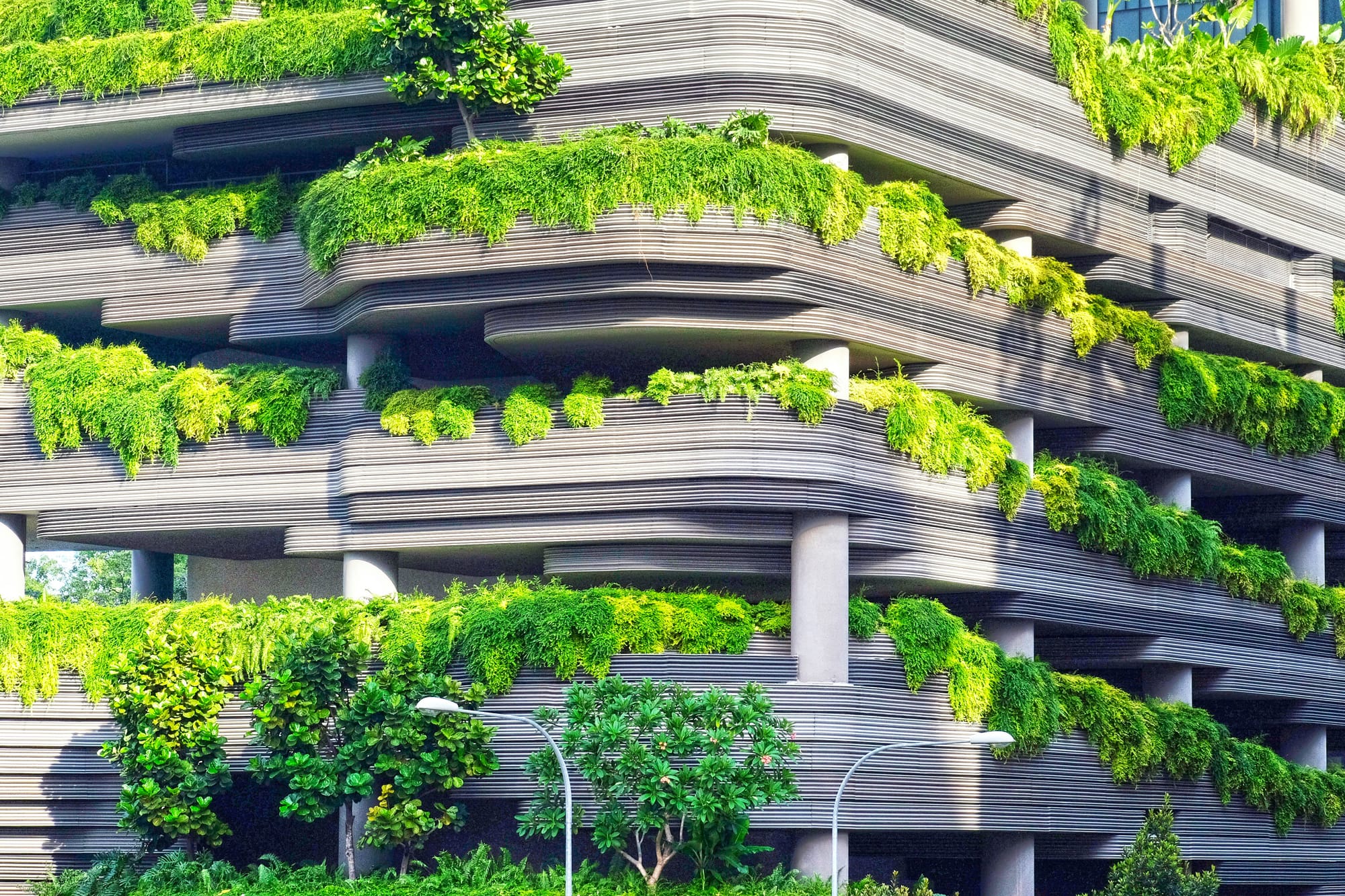

Advanced Image Layouts
For layouts where you want to group images in different quantities per row, simply use a combination of gallery and image blocks to get the desired effect:
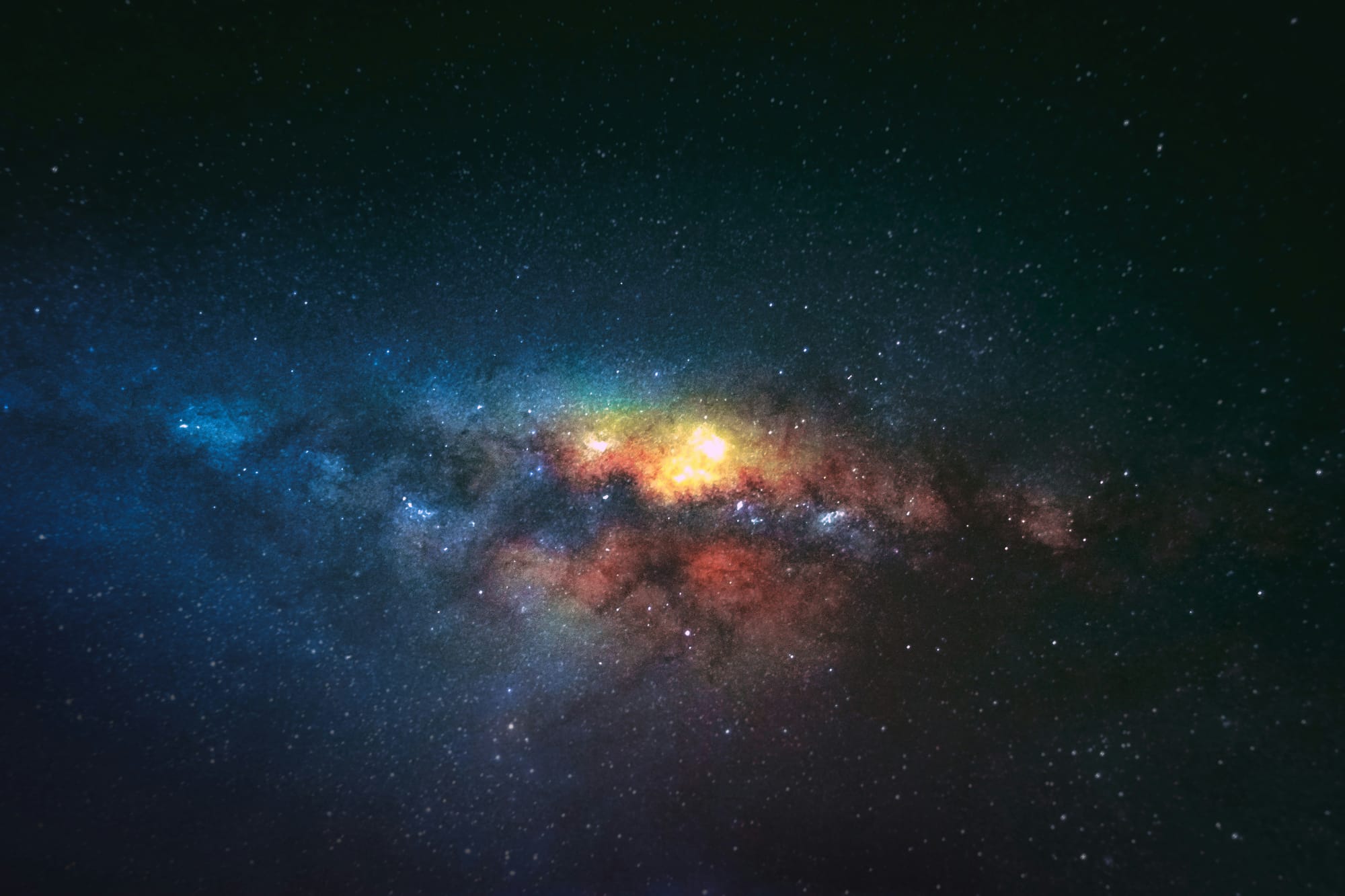


Image Captions
Captions for images use bold text to differentiate between the caption and the credit. For instance, this credit line in the editor:
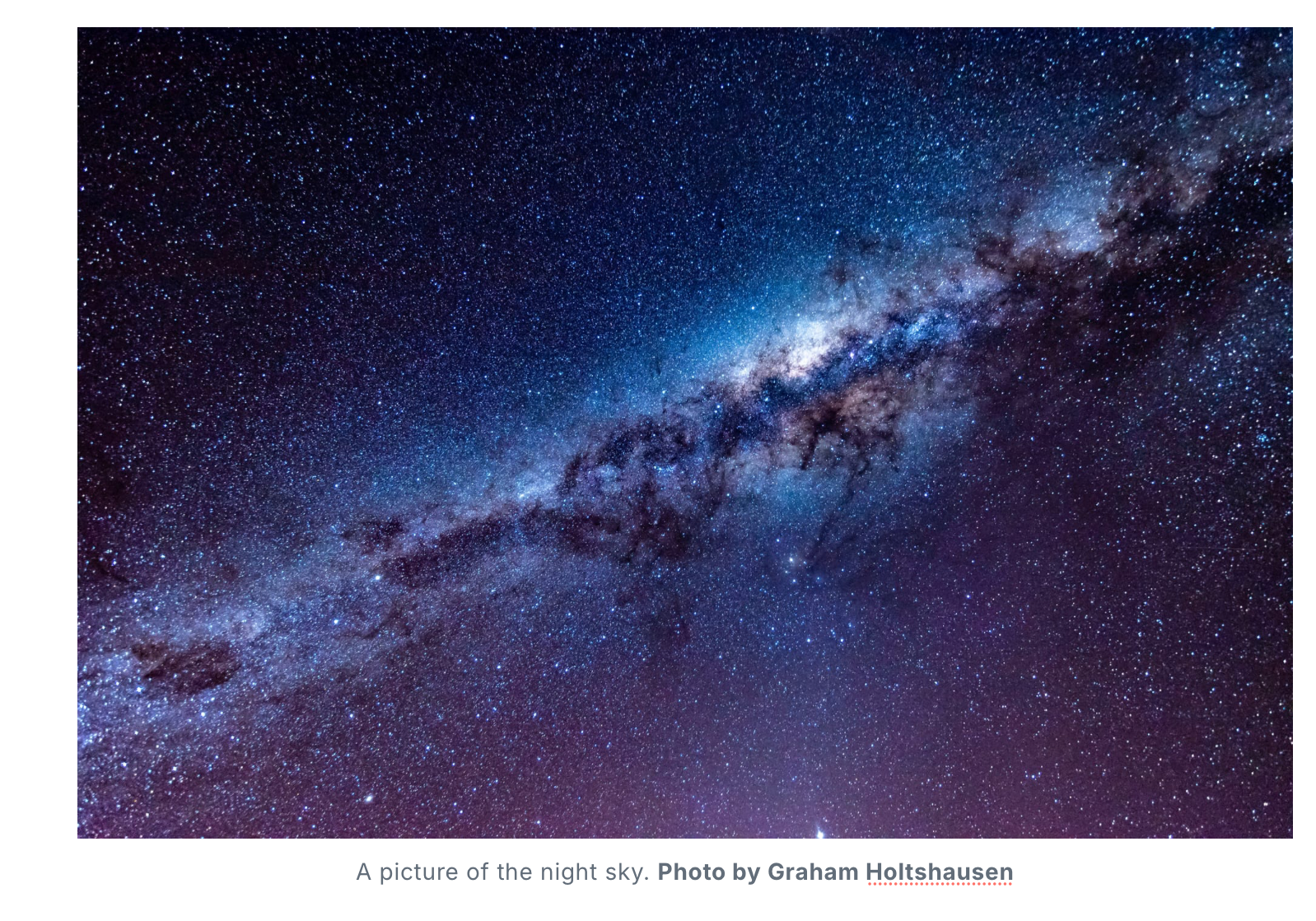
will be rendered like this:

💬 Quotes
Ghost allows for two distinct quote elements, both accessed by selecting text and clicking the Quote button that appears above it. Clicking that once will create a block quote. Clicking it again will create a pull quote. Clicking a third time will remove the quote styling.
A block quote will only appear in a story once. The language that's in a pull quote appears twice: once in the body of the text and second in the stylized pull quote itself as part of the story's layout on the page.
Block Quotes
A block quote is when you stylize a quote differently from the rest of the text for emphasis:
“I am no longer accepting the things I cannot change. I am changing the things I cannot accept.”
— Angela Davis
Pull Quotes
A pull quote is when you copy a piece of text and create a separate, prominent placement for it so that readers can sit with that language more:
"You can’t separate peace from freedom because no one can be at peace unless he has his freedom."
— Malcolm X
✂️ Snippets
Ghost allows for saving blocks of HTML code as a snippet. You can add a snippet either by clicking the + menu at the beginning of a line or by typing /snippet.
Two snippets are currently available:
- Drop Cap Paragraph
- No Drop Cap Paragraph
You can also create your own snippets by clicking the “Save as snippet” on a HTML block that has code you would like to save.

🔻 Toggles
Toggles (also called collapsible sections or accordions) allow you to hide and reveal content with a click. They’re ideal for organizing information into bite-sized, manageable pieces—especially when you want to avoid overwhelming the reader.
How can I get involved in community activism?
- Volunteer your time with local nonprofits and advocacy groups focused on social justice.
- Attend community meetings, rallies, and forums to stay informed and voice your concerns.
- Use social media platforms to raise awareness and mobilize support around important issues.
Why is voting important in local elections?
- Local officials influence policies that impact schools, public safety, and city services.
- Voting empowers communities to hold leaders accountable and drive meaningful change.
- Increased voter turnout strengthens representation and amplifies marginalized voices.
Publishing
👁️ Previewing
- Click Preview in the post editor
- View how the post will look live
📆 Scheduling a post
- Click Publish in the post editor
- Select the time you would like the post to go live, and click Schedule This Post
- Confirm the date and time you would like the post to go live and click OK
- Post Scheduled!